Last updated: 16 October 2026
Picture this. You find a tender notice that fits your business perfectly. The closing date is a week away, your documents are nearly ready, and then you realise you cannot bid at all, because you do not have an account on the government’s procurement portal.
That is the moment most contractors and suppliers start searching for EPADS registration. This guide is meant to save you that scramble. I went through the Punjab registration page myself on 16 October 2026, so the first steps below are based on what the portal actually shows. For the later steps, I have used PPRA’s official supplier manual and said so clearly.
What is EPADS, and which portal is for Punjab?
EPADS (e-Pak Acquisition & Disposal System) is the online system used by government departments to publish tenders and receive bids. Suppliers and contractors need an account to take part.
One thing confuses many people: there is more than one EPADS portal. Punjab suppliers register at punjab.eprocure.gov.pk. The newer EPADS v2.0 portal is a separate system, and its jurisdiction list I checked offers Federal PPRA and KPPRA, with no Punjab option. So before you start, make sure you are on the Punjab address.
What to keep ready before you start
- A mobile number and email address you can access right now. A one-time password (OTP) is sent to both.
- Your business name exactly as it appears on your registration documents.
- A strong password that you will remember. PPRA’s manual asks for at least 8 characters, starting with a letter, with a lowercase letter, a number and a special character.
- Your NTN and tax status in order. Most public tenders ask for proof of tax registration, so check that you are on the Active Taxpayer List. Our guide to checking your ATL status takes two minutes.
Step 1: Open the Punjab portal and choose “Register as a supplier”
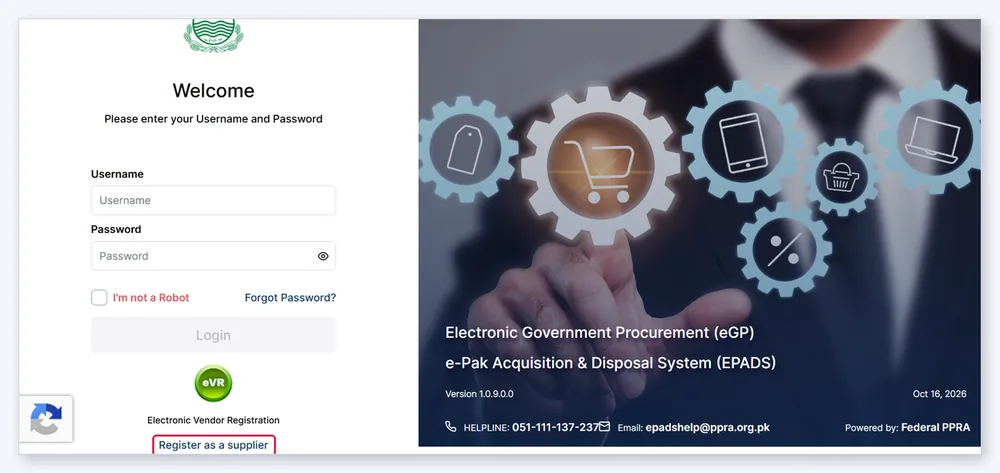
Go to punjab.eprocure.gov.pk. You will see a login page asking for a username and password. Ignore that for now. Below the login button there is an “Electronic Vendor Registration” (eVR) badge, and under it a link that says Register .as a supplier. Click it.
Step 2: Fill in the “Create an Account” form
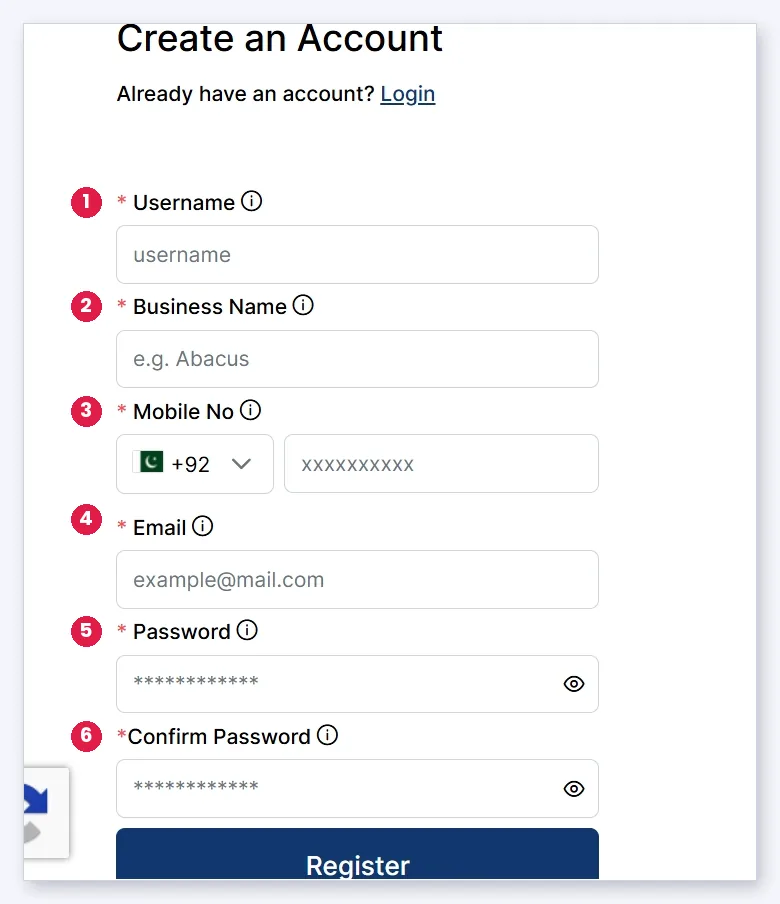
The form has six fields:
- Username
- Business Name
- Mobile No (+92)
- Password
- Confirm Password
Each field has a small (i) icon with a hint. Read the hint before you type, especially for the username and password. PPRA’s manual says the business name you enter here is carried into your business profile later, so type it carefully. You also have to tick the “I’m not a Robot” check before submitting. Then press Register
Step 3: Verify with the OTP
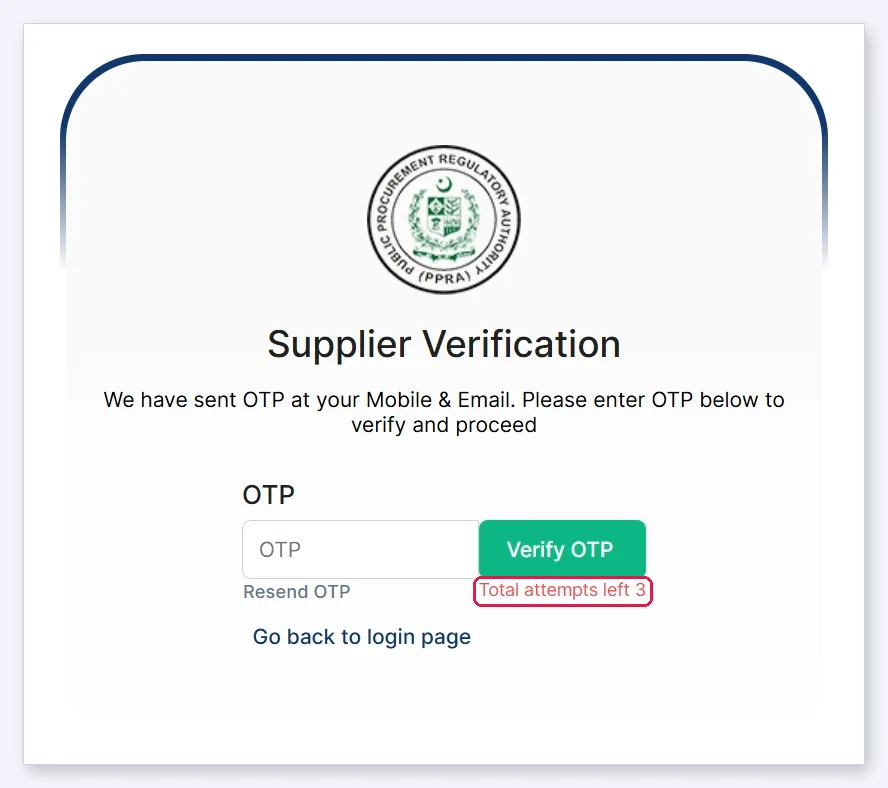
After registering, you reach a Supplier Verification screen. The portal says it has sent an OTP to your mobile and your email, and you enter it in the box and press Verify OTP.
Two things worth knowing:
- The screen shows “Total attempts left 3”. Do not guess. Check your SMS and your inbox (including spam), and use Resend OTP if nothing arrives.
- PPRA’s manual says an OTP expires after 5 minutes, so keep your phone and email open before you click.
Step 4: Wait for approval, then log in
According to PPRA’s supplier manual, you receive a confirmation email after registering, and you can log in with your username and password once the system administrator approves your account. If your first login does not work, do not keep retrying. Wait for the approval email, then try again, and call the helpline if it takes long.
Step 5: Complete your business profile
After login, the manual describes a business profile in three parts:
- Business Classification: your entity type (for example individual or consultant, sole proprietorship, private limited, partnership or NGO), category, industry and a short description.
- Basic Information: whether your business is local or international, and your city, tehsil and district.
- Contact Information: your email and mobile number are filled in from your sign-up details. A phone and fax number are optional.
Individuals and sole proprietors have a shorter profile. Companies, partnerships and similar entities also add beneficial owner details: name, CNIC, contact number and email for each owner.
Save each section before moving on. A half-finished profile is one of the easiest ways to lose time before a deadline.
Common problems and how to avoid them
- OTP does not arrive: check spam, confirm the mobile number you typed, then use Resend OTP before your attempts run out.
- Wrong email or mobile: the portal sends everything to what you entered at sign-up, so double check both before pressing Register.
- Forgot your password: the manual says to use the Forgot Password link on the login page, enter your username, and follow the reset link sent to your registered email. You then confirm with codes sent by email and SMS.
- Portal mix-up: if your screen looks different from the one in this guide, check that you are on punjab.eprocure.gov.pk and not another EPADS address.
Frequently asked questions
Is EPADS registration free?
The registration form I saw does not ask for any payment. Rules and fees can change, so confirm with PPRA’s helpline (051-111-137-237) or at epadshelp@ppra.org.pk before relying on this.
Is the Punjab portal the same as EPADS v2.0?
No. They are separate portals with different sign-up forms. Punjab uses a username and password, while v2.0 uses your email as the login. Use the portal that matches the department that issued your tender.
What if I run out of OTP attempts?
Go back to the login page and contact PPRA’s helpline. Do not create several accounts to get around it.
Do I need an account to see tenders?
You need one to bid. Check the tender notice for how to access the bidding documents.
Registered? Now get tender-ready
An account is only the first step. A good tender also needs clean, up-to-date accounts, tax compliance and well-organised documents, and these are the things that cost suppliers contracts when they are rushed at the last minute.
I help Pakistani businesses with exactly this: EPADS and PPRA support, income tax return filing, bookkeeping and accounts management, and AI-powered automation to keep your records and reporting in order without the manual grind.
If you want help with your EPADS account or your tender paperwork, contact me through the website or message me on WhatsApp: +92 321 6090728.
Related guides: How to file an income tax return in Pakistan · Monthly sales tax return in Pakistan
This article is general information, not legal or procurement advice. Portal screens, rules and fees are set by PPRA and can change. Please confirm the current position with PPRA before you act. AzamFinAI is an independent service provider and is not affiliated with PPRA or any government body.
Leave a Reply